On This Page
Where to Begin
Choose Your Path
Your first steps depend on who you are and what you're looking to do on the network.
New Member
You've received an invite and want to join the network, set up your account, and start participating in discussions. Start at Step 1 →
Ordained Pastor
Join the network, then get your account verified to access pastoral features, your flock list, and The Shieling. See Pastoral Guide →
Community Leader
You want to create a community space for your congregation, school, or organization. See Communities Guide →
Step 1
Joining the Network
Lutheran Network is invitation-based. You'll need an invite code from an existing member or community owner to register.
Get an Invite
Ask an existing member for their personal invite link, or request a code from a community you want to join. If you don't know anyone yet, email invite@lutheran.network.
Open the Invite Link
Follow the link you've received to the registration page on lutheran.network. The invite code will be pre-filled if you used a direct invite URL.
Create Your Account
Choose a username, provide your email, and set a password. Review and assent to the confessional Lutheran doctrine statement presented during registration.
Confirm Your Email
Check your inbox for a confirmation email and click the link to activate your account.

Step 2
Setting Up Your Profile
A complete profile helps others know who you are and strengthens the relational fabric of the network.
Add a Profile Photo
Upload a profile picture — a real photo is encouraged. The network is built around genuine relationships, and a face goes a long way.
Complete Your Bio
Add a short biography. Include your church, location, vocational context, or anything that helps fellow Lutherans know who you are.
Associate Your Pastor
If your pastor is on the network, visit their profile and mark the pastoral association. This connects you to your pastor within the platform.
Configure Notifications
Visit your notification settings to choose how you receive alerts for discussions, communities, and pastoral activity.
Step 3
Navigating Your Feed
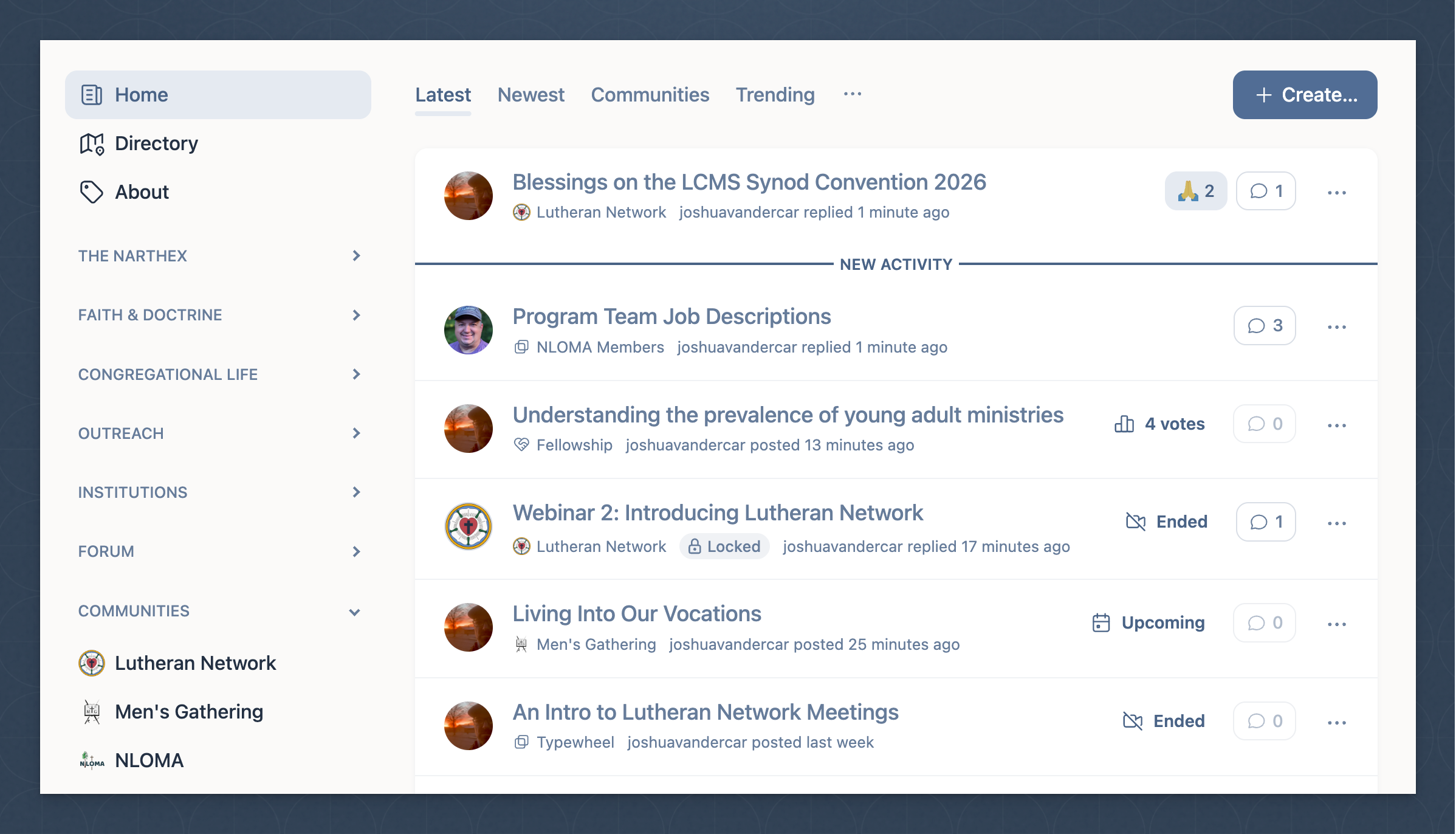
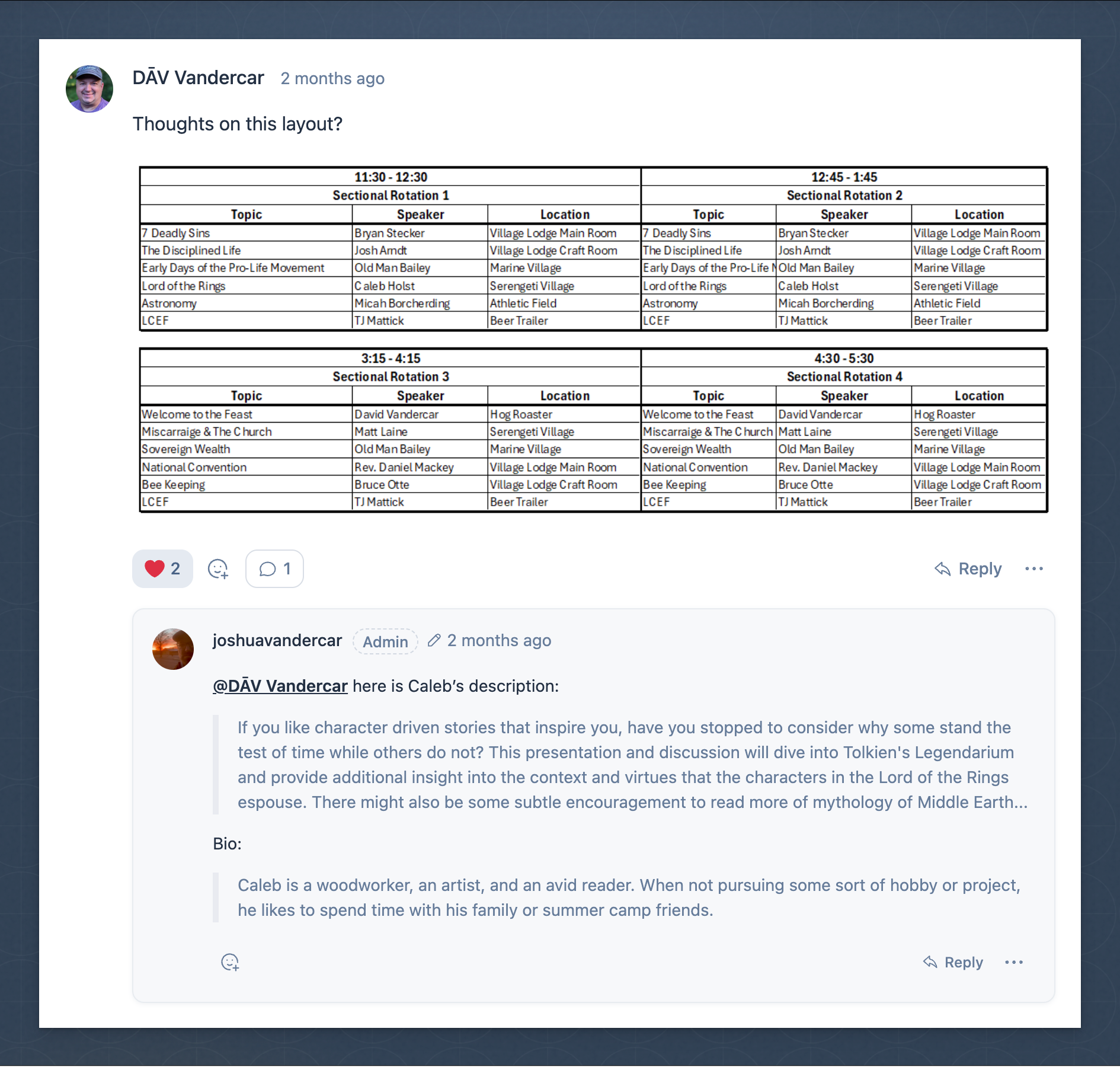
The primary feed is your home base — a single stream of activity from every channel and community you follow.
When you first log in, you'll see discussions from the default network channels in your feed. As you follow additional channels and join communities, your feed grows to reflect your interests.
Browse the Channel Directory
Explore the available topical channels. Follow any channels that interest you — theology, congregational life, Lutheran history, current events, and more.
Follow or Unfollow Channels
Your feed is yours to customize. Unfollow channels that aren't relevant and follow new ones as you discover them. Changes take effect immediately.
Roll and Unroll Threads
In a busy discussion, use the roll/unroll control on comment threads to see just the top-level replies or dive into the full conversation.
Step 4
Joining a Community
Communities are where the network's deepest connections happen — organized spaces for your congregation, district, or ministry group.
Go to Communities
From the left sidebar, click Communities to see your current communities and access the option to join a new one.
Join with an Invite Code
If you have an invite code from a congregation or group, click Join Group and enter it to join a dedicated (private) community.
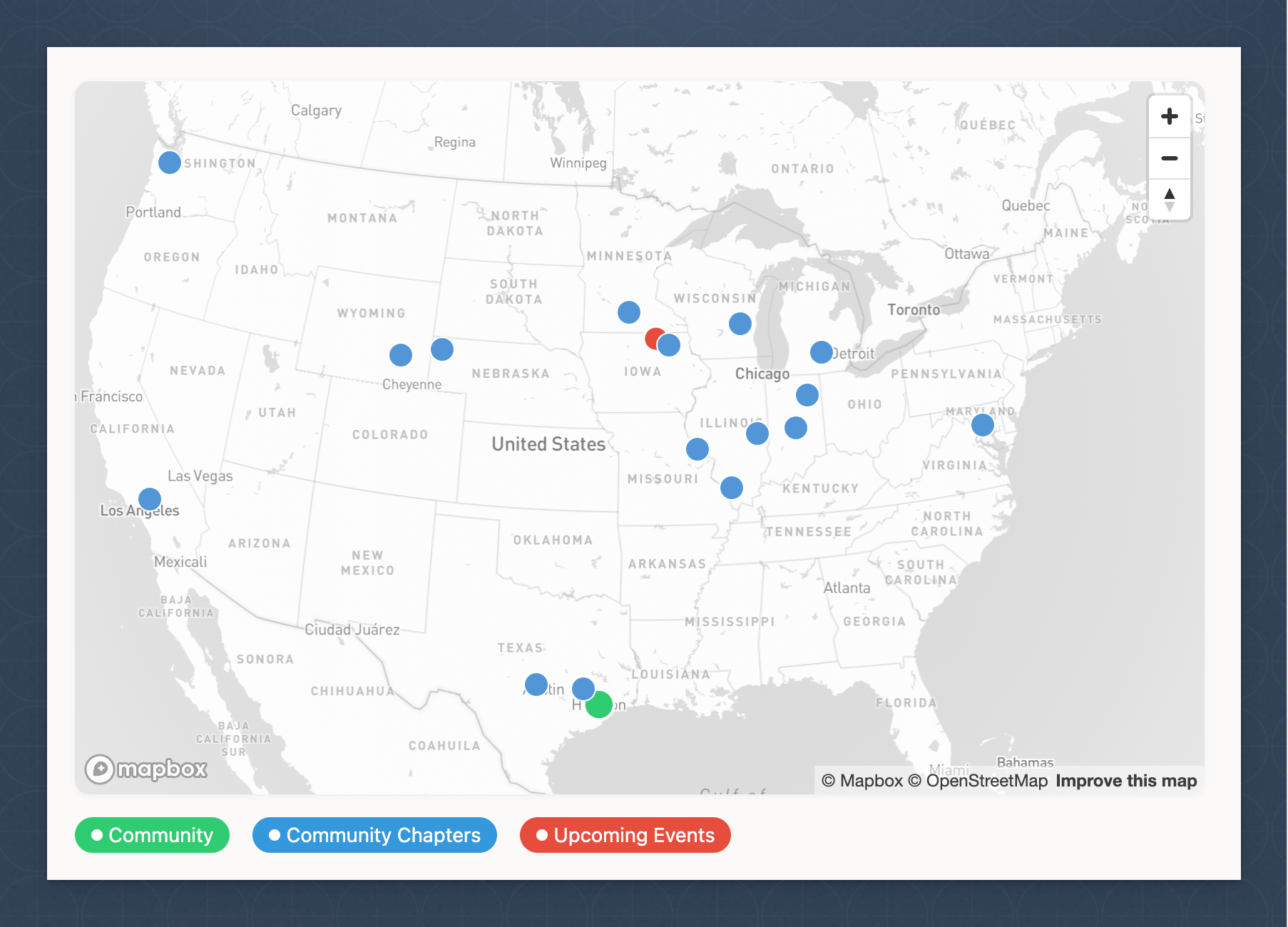
Browse Open Communities
The directory lists open communities available to all network members. Browse by type or geography and join any that fit your interests.
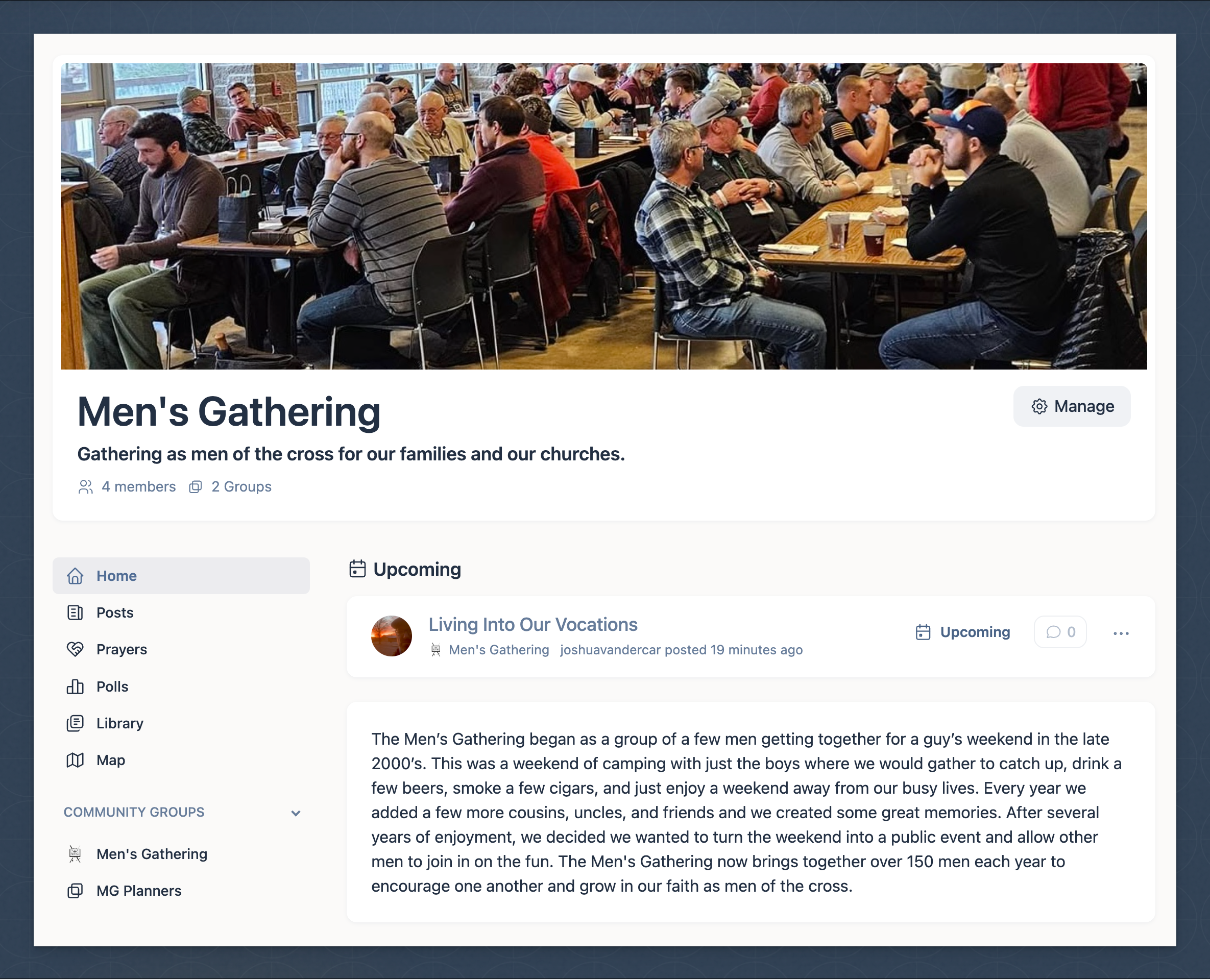
Explore the Community
Once in a community, explore the landing page, browse the group channels, join discussions, post prayers, and check for upcoming events.
Step 5
Inviting Others
Growing the network is built into the structure. Every member plays a part.
The Lutheran world is remarkably small. One of the joys of the network is discovering how interconnected it already is. Your personal invite link is the thread that adds new members — and new connections — to the weave.
Find Your Invite Link
Your unique invite link is available in your account settings. Copy it to your clipboard and share it however you like.
Share It
Send it by email, text, or paste it in a bulletin or newsletter. When someone registers using your link, you'll receive a notification.
Community Invite Links
If you belong to an open community, you also have a community-specific invite URL that brings new members directly into your community and the broader network.
Summary
Quick-Start Checklist
Use this checklist to make sure you've covered the essentials when you first join.
Account Setup
- Register using an invite link or code
- Confirm your email address
- Upload a profile photo
- Complete your profile bio
- Configure notification settings
Connections
- Associate your pastor (if they're on the network)
- Join your congregation's community
- Browse and follow topical channels
- Copy your personal invite link
Participation
- Read through the Notebook channel (announcements)
- Post an introduction in a channel
- Engage in at least one discussion thread
- Post a prayer request or signal prayer for someone
- Check for upcoming events in your community
For Pastors
- Email ordination evidence to get verified
- Access The Shieling pastoral channel
- Review your list of members who've marked you as their pastor
Help
Frequently Asked Questions
How do I get an invite to join?
Ask an existing member for their personal invite link, or request one from a community you want to join. You can also email invite@lutheran.network to be connected.
Do I need to be Lutheran to join?
The network is not so exclusive that we require all members be Lutheran. We do, however, ask that you assent to the following when creating an account: belief in the Triune God — Father, Son, and Holy Spirit; affirmation of the Holy Scriptures as the inspired and authoritative Word of God; holding the Lutheran Confessions in esteem; and a commitment to conduct yourself in a way that honors Christ and builds up the fellowship.
We acknowledge that both confessing Lutherans and those seeking to learn about our common Lutheran confession will benefit from this community. We don't explicitly require agreement with every point of the Lutheran Confessions, but we do ask that you honor, respect, and be open to learning from those confessions and from those professing them.
Why does registration require confessional assent?
Our shared faith in the Triune God and affirmation of the authority of God's Word is foundational to this community. The assent is not a formality — it reflects the character of the network and the confession that unites us.
As confessional Lutherans, we hold to the Holy Scriptures as the inspired and infallible Word of God — our sole authority for faith and life. We also affirm the Lutheran Confessions contained in the Book of Concord (1580) — including the three ancient creeds, the Augsburg Confession and its Apology, the Smalcald Articles, Luther's Small and Large Catechisms, and the Formula of Concord — as a faithful exposition of Scripture. These confessional writings unite us around the central truth of the Gospel: salvation by grace alone, through faith alone, in Christ alone.
Is Lutheran Network free to use?
Individual membership — joining the network, participating in discussions, following channels, and using all standard forum features — is free. Community creation uses a subscription model based on what you need (groups, members, video minutes, etc.).
How do I find my congregation's community?
Navigate to Communities in the left sidebar and click Join Group. Browse open communities in the directory, or enter an invite code from your congregation to join a dedicated (private) community.
Can I use Lutheran Network on my phone?
Yes. The platform has been designed with mobile use in mind, and recent updates include numerous mobile improvements across navigation, layout, and interactions.
How do I verify as a pastor?
Email connect@lutheran.network with evidence of your ordination. The team will review it and label your account with the Pastor group designation, granting access to pastoral features and The Shieling.
Why do I need an invite to join?
Practically speaking, requiring an invite prevents bot accounts from registering. Beyond that, we consider it a good friction — one that encourages intentionality and commitment from those who invite others into the space. The true success of this network is up to all of us.
Do we really need another online communication platform?
Yes. The usual suspects — Facebook, X, TikTok — are destructive to genuine community. Lutheran Network aims to provide a healthier alternative: a faith-founded space for real social relationships in the church, free from algorithmic onslaught. Let's reclaim some calm.
Can anyone create a community?
Yes. Any member can create a community. To account for infrastructure costs and support network maintainers, communities require a paid subscription. A small community of 5 users with 500 collective minutes of video time starts at $2/mo. See community pricing →
How many group channels can I create for a community?
Community groups are priced at $1/group/month. You can add any number of groups to your community subscription.
When hosting meetings and presentations, do participants need an account?
No. After creating a meeting or presentation within a community group, the host and community owner can share a host link, a meeting participant link, and a presentation viewer link. Anyone with that link can join or view — no account required.
Is my data secure?
Yes. The body content of all posts and comments is encrypted at rest in the database.
Who's behind this thing?
Lutheran Network is built, hosted, and maintained by @joshuavandercar, a member of Emmanuel Lutheran Church in Fort Wayne, Indiana. He can be reached by emailing joshua@lutheran.network or dropping a message in his mailbox on the forum.
Who do I contact for support?
Post in the support channel on the network, or email support@lutheran.network.